Schedule recurring blueprints
A Blueprint you can run on demand is useful. A Blueprint that runs itself — on a cadence, with its tools connected and its output delivered — is a product. Barndoor Automations schedules turn any Blueprint into a recurring, hands-off job on the managed runtime: you pick when it runs and what parameters it runs with, and the platform handles the rest.
The running example in this guide is a real one: the Weekly Market Intelligence Brief blueprint. Every Monday at 9:00 AM Eastern it analyzes the past week of debt-relief market data, renders an email-ready HTML brief, and sends it to the sales team through the Resend MCP server — no servers, cron jobs, or delivery scripts of your own.
Why schedule on Barndoor
The point isn't just "cron in the cloud." Scheduling on Barndoor Automations means the whole job — trigger, computation, tool access, delivery, and observability — lives in one place, versioned with the blueprint.
| Concern | Roll your own | On Barndoor Automations |
|---|---|---|
| Trigger | A cron daemon on a box you maintain | Native schedules — timezone-aware, with a human-readable cadence preview |
| Tool access | Store, inject, and rotate API keys yourself | MCP servers connected once and shown ready; auth is managed for you |
| Delivery | Separate email/reporting pipeline | The Blueprint sends its own result through an MCP server — delivery is the run |
| Parameters | Hardcode or thread through env vars | Per-schedule runtime parameters, edited in the UI |
| Observability | Build your own logging and alerts | Execution history and an executions-over-time chart, per Blueprint |
| Changing cadence | Edit crontab, redeploy | Edit the schedule in the UI — no redeploy |
Because the Blueprint and its schedule are the same artifact, there's no glue code to drift out of sync. Change the blueprint, and every schedule that runs it picks up the change on the next fire.
The Blueprint behind the schedule
A schedule runs a Blueprint— so first you have a Blueprint worth running. The full Weekly Market Intelligence Brief is in the Blueprint marketplace; the excerpts below are the parts that matter for scheduling. (Open the marketplace item to read it end to end, HTML renderer and all.)
Declare the tool and the parameters up front. A system(...) line sets the analyst persona, require mcp Resend connects the email tool, and two parameter(...) lines expose the values the schedule fills in each run:
timeframe and to_address aren't hardcoded — the schedule freezes their values per run (below), so the same Blueprint can drive this week's brief, a monthly recap, or a one-off to a different inbox.
Each research session gathers one slice and types its output. There are five independent search sessions; the economic dashboard is representative — note how the schema names exactly the columns the email table needs:
The final session renders and delivers. It runs after="economic_dashboard", builds the branded HTML in a deterministic code() PreCall (Resend can't loop over arrays, so the Blueprint assembles the rows itself), then hands the finished html/text to Resend's send-email:
Three things worth calling out:
- Frags resolves the run order from the
afterdeclaration. The five research sessions run independently;send_emailwaits oneconomic_dashboard. You declare the dependency and the runtime works out the order — there's no imperative sequence (see Control the flow of a blueprint). $(...)passes real values, not strings.data = $( context )hands the code block the actual object graph, andto = $( [params.to_address] )builds a real array for Resend — that typing is what lets the renderer loop overmetricsand the rest. See Templates and expressions.require mcp Resendconnects the Resend MCP server; the Blueprint calls itssend-emailfunction directly. This is the connection that shows asResend · readyin the blueprint's Tools panel — its credentials are managed by the platform, not baked into the blueprint. For how MCP tools are declared and called, see Connect Frags to your data.
Create a schedule in the UI
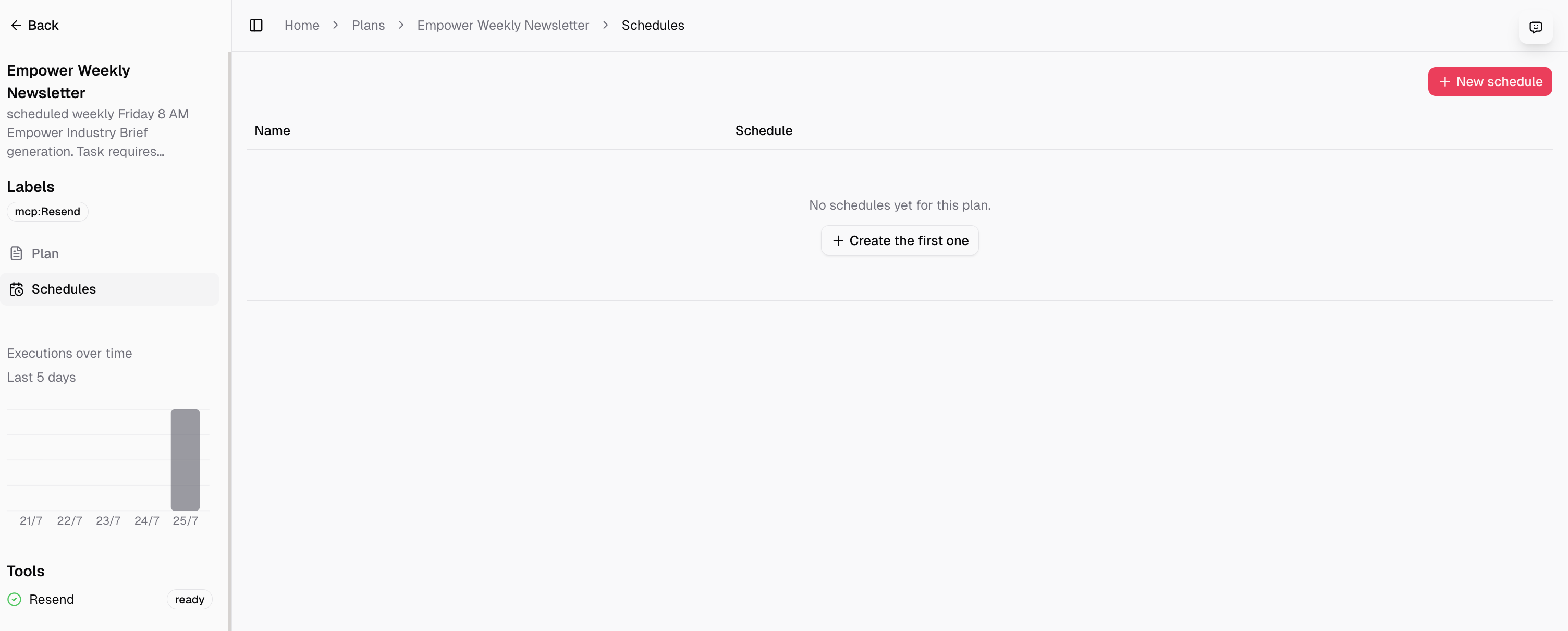
Open the Blueprint and select Schedules in the left rail. The first time, you'll see an empty state — click Create the first one (or + New schedule in the top right on later visits).
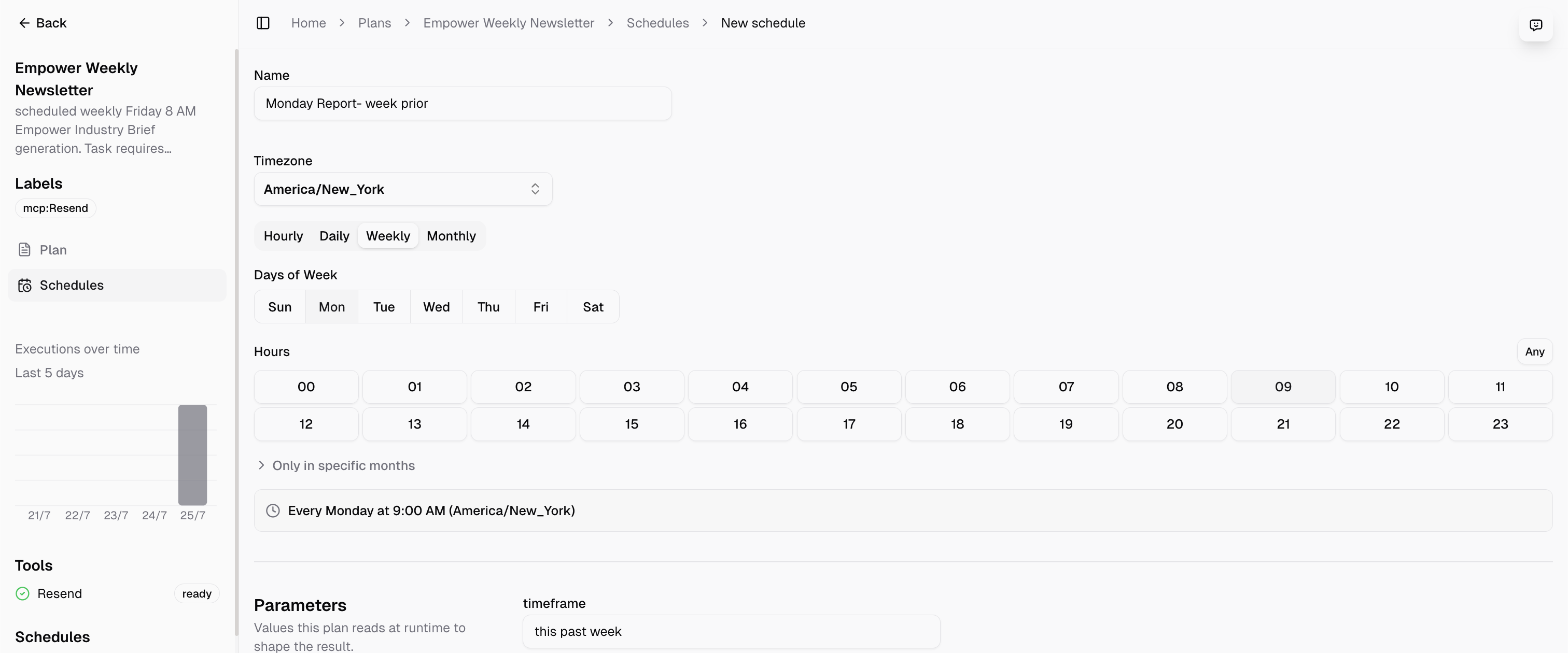
1. Name the schedule. Give it something you'll recognize in the list — e.g. Monday Report — week prior. A Blueprint can hold several schedules, so the name is how you tell them apart.
2. Set the timezone. Cadences fire in the timezone you pick — here, America/New_York. This matters for "9 AM": the platform resolves the fire time in your timezone and handles daylight-saving shifts.
3. Pick the cadence. Choose one of Hourly · Daily · Weekly · Monthly. For the newsletter, select Weekly, then:
- Days of Week — select Mon.
- Hours — select 09. (
Anyfires every hour; leaving hours unset behaves the same.) - Only in specific months — optional; leave it closed to run year-round.
As you choose, the panel shows a plain-English preview so there's no cron syntax to second-guess:
🕘 Every Monday at 9:00 AM (America/New_York)
4. Set every required runtime parameter. Under Parameters, set timeframe to this past week and to_address to the recipient email address. These values belong to this schedule; entering them for a manual run does not establish that they were saved on the schedule. Reopen the saved schedule and check both values.
Check unattended tool access. A scheduled run cannot open a browser to authenticate. Confirm that each connection has valid credentials for unattended use. A successful manual run alone does not verify scheduled authentication. If a scheduled run returns no valid token found and interactive authentication disabled or failed, inspect its tool dependencies and reauthorize the affected connection before trying again.
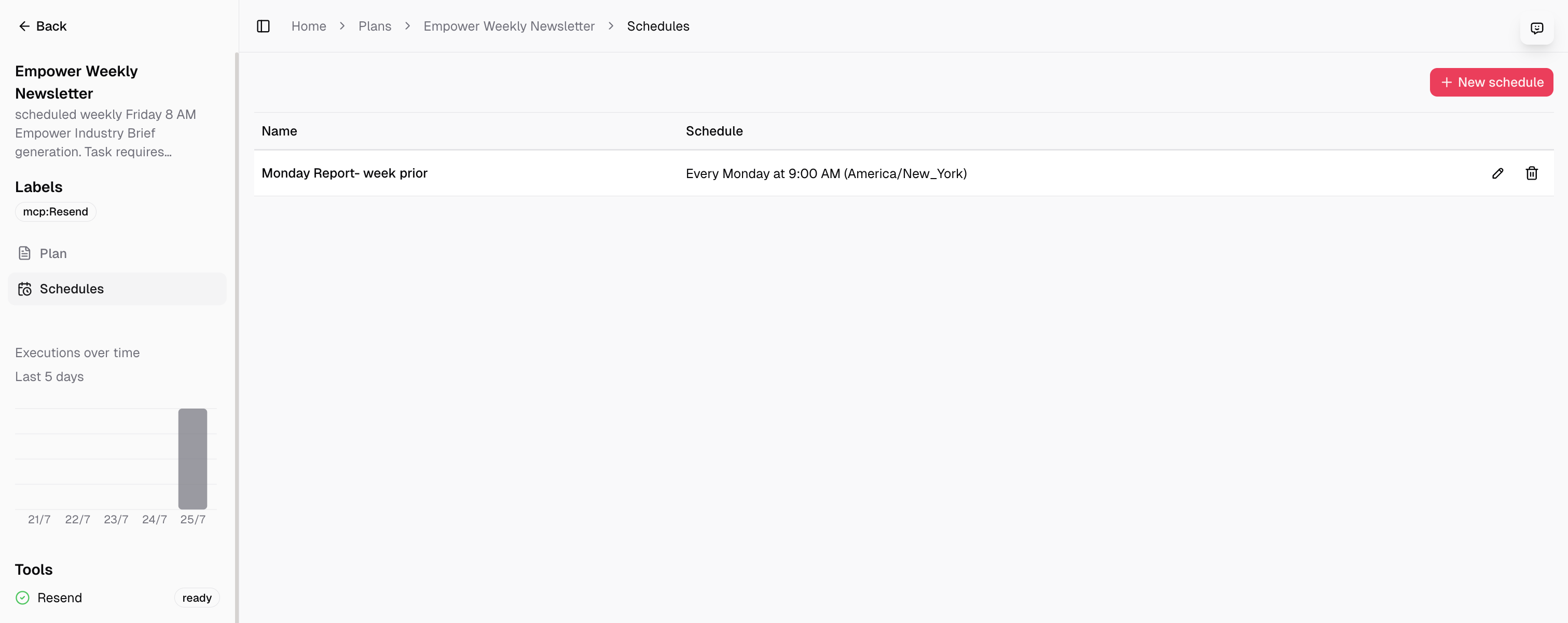
5. Save. The schedule appears in the blueprint's Schedules list with its name and cadence, and edit (✏️) / delete (🗑️) controls. It will fire on the next matching time. Check the first scheduled result and delivery to confirm the saved parameters and unattended connections work.
Watch it run
Back on the Blueprint overview, the Executions over time chart tracks runs over the last few days, so you can confirm the schedule is firing and spot a run that didn't. Each fire executes the Blueprint end to end: the five research sessions gather the week's regulatory, competitor, lending, marketing, and economic data, then send_email renders the branded HTML and delivers it through Resend — the same structured output you'd get from a manual run, on autopilot.
To change the cadence or parameters, edit the schedule in place — there's nothing to redeploy. To pause the job, delete the schedule; the Blueprint itself is untouched and still runnable on demand.
Next steps
- Explore the full Weekly Market Intelligence Brief Blueprint in the marketplace — the complete research sessions and HTML renderer this guide excerpted.
- Wire up the tools your scheduled Blueprint needs in Connect Frags to your data.
- Shape the output your email (or downstream consumer) reads in Design your output schemas.
- Sequence and gate the sessions a scheduled run depends on in Control the flow of a blueprint.
Run a Blueprint automatically on a cadence — schedule a weekly market brief that analyzes data and emails an HTML report through the Resend MCP server, all on Barndoor Automation's managed runtime.